How to show FFT Spectrum behind EQ curve like FabFilter Q3?
-
Hi everyone,
I'm building an EQ plugin in HISE 4.1.0 and I want to add a real-time FFT spectrum analyzer behind the EQ curve (like FabFilter Q3).
My setup:EQ curve working perfectly with FilterDisplay FloatingTile
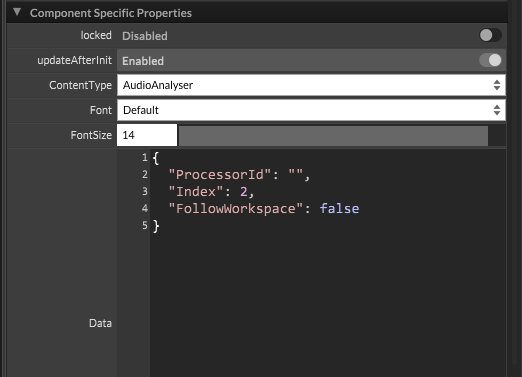
Added a new FloatingTile with ContentType = AudioAnalyser
Both FloatingTiles stacked on top of each otherThe problem:
AudioAnalyser FloatingTile shows nothing — I tried different ProcessorId values (Script FX1, instrument name, empty) but nothing works.
My questions:- list itemIs it possible to display FFT spectrum + EQ curve at the same time in the same area?
Thank you!
- list itemIs it possible to display FFT spectrum + EQ curve at the same time in the same area?
-
@the-red_1 You need to assign the floating tile to the module, via the ProcessorId. So ProcessorId should be filled with the name of your module. "Index" is for which buffer you want to display.
Example:
"ProcessorId": "Script FX1", // Name of your effect
"Index" : 0, // To display the first FFT
In either case, I think this example should help you somewhat:
https://docs.hise.dev/tutorials/scriptnode/index.html#custom-draggable-eq
-
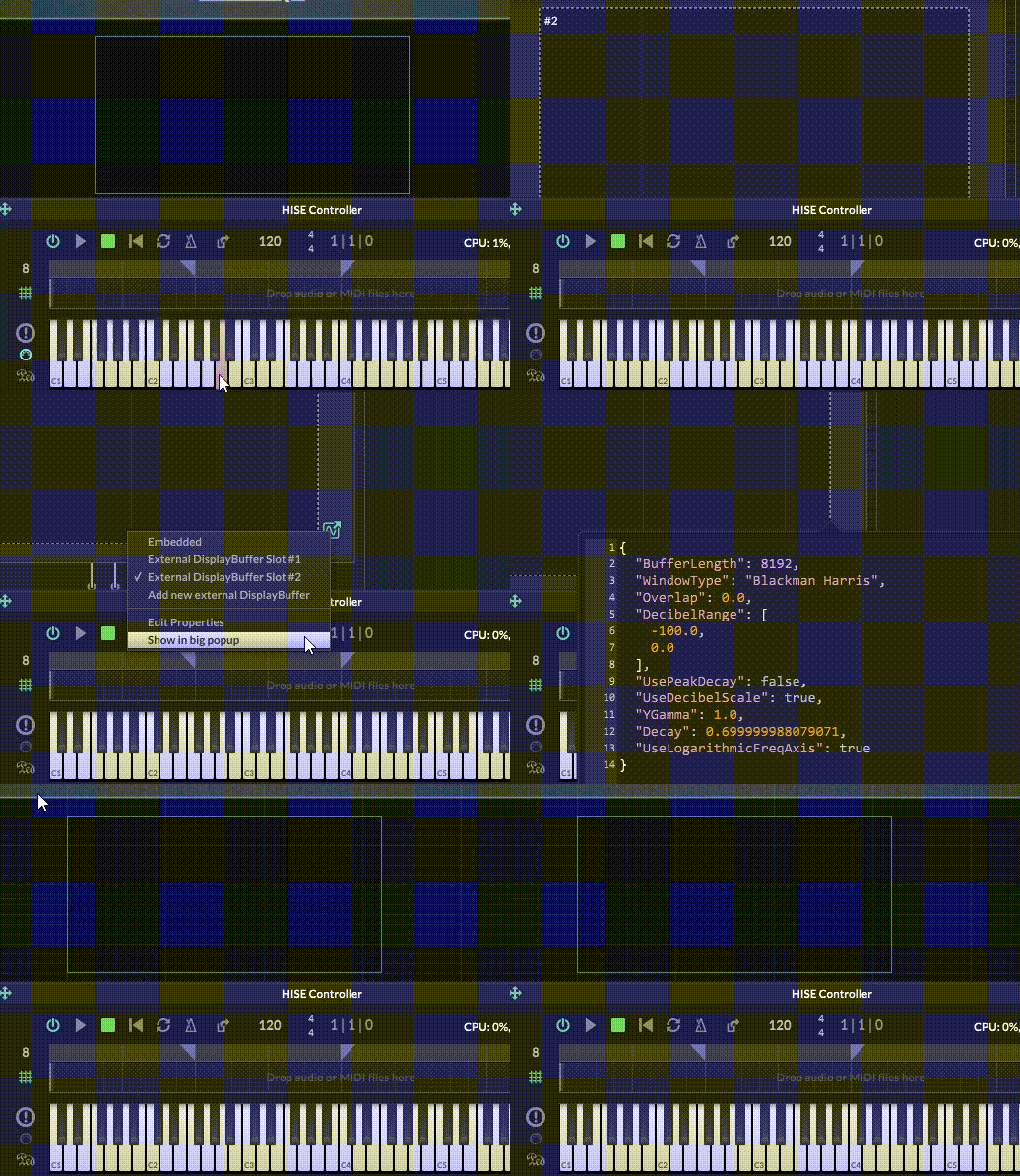
Right click on the EQ and enable the spectrum analyser
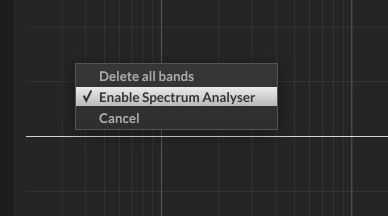
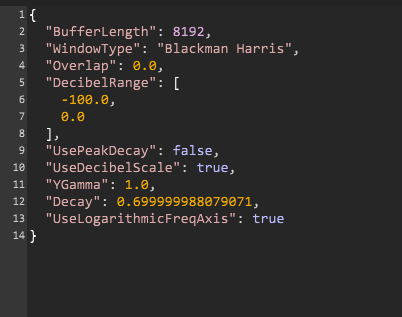
You can set the properties for it in your script.
    const dsb = Synth.getDisplayBufferSource("parametricEq0");

	inline function setEqProperties()
	{
		local props = {
		  "BufferLength": 4096,
		  "WindowType": "Blackman Harris",
		  "DecibelRange": [-90.0, 18.0],
		  "UsePeakDecay": false,
		  "UseDecibelScale": true,
		  "YGamma": 0.2,
		  "Decay": 0.6,
		  "UseLogarithmicFreqAxis": true
		};

		local dp = dsb.getDisplayBuffer(0);
		dp.setRingBufferProperties(props);
	}
Free HISE Bootcamp Full Course for beginners.
YouTube Channel - HISE tutorials
My Patreon - More HISE tutorials -
@David-Healey Thank you, I managed to get the AudioAnalyser working!
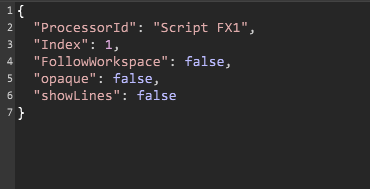
I couldn't find "Enable Spectrum Analyser" from right-clicking the EQ (probably because I'm using SVF EQ nodes in scriptnode, not a built-in Parametric EQ). Instead I used this code:javascriptconst var dsb = Synth.getDisplayBufferSource("Script FX1"); inline function setEqProperties() { local props = { "BufferLength": 4096, "WindowType": "Blackman Harris", "DecibelRange": [-90.0, 18.0], "UsePeakDecay": false, "UseDecibelScale": true, "YGamma": 0.2, "Decay": 0.6, "UseLogarithmicFreqAxis": true }; local dp = dsb.getDisplayBuffer(1); dp.setRingBufferProperties(props); } setEqProperties();And FloatingTile JSON:
json{
  "ProcessorId": "Script FX1",
  "Index": 1,
  "FollowWorkspace": false
}
But now I have a new problem:
The AudioAnalyser background is stuck grey and I can't change it:Setting all colours to #00000000 in property editor → no effect
Tried JSON properties (BGColour, LineColour) → no effect
I want to make the background transparent so it overlays on top of my EQ curve displayIs there any way to customize the AudioAnalyser colours / make it transparent?

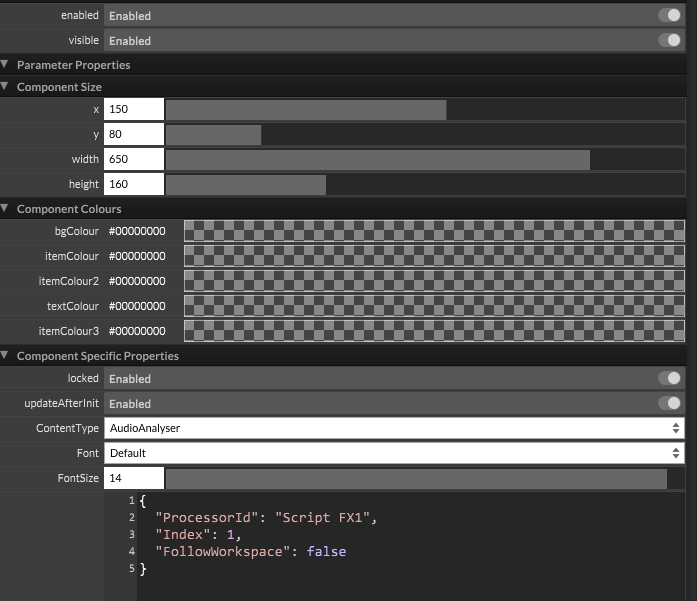
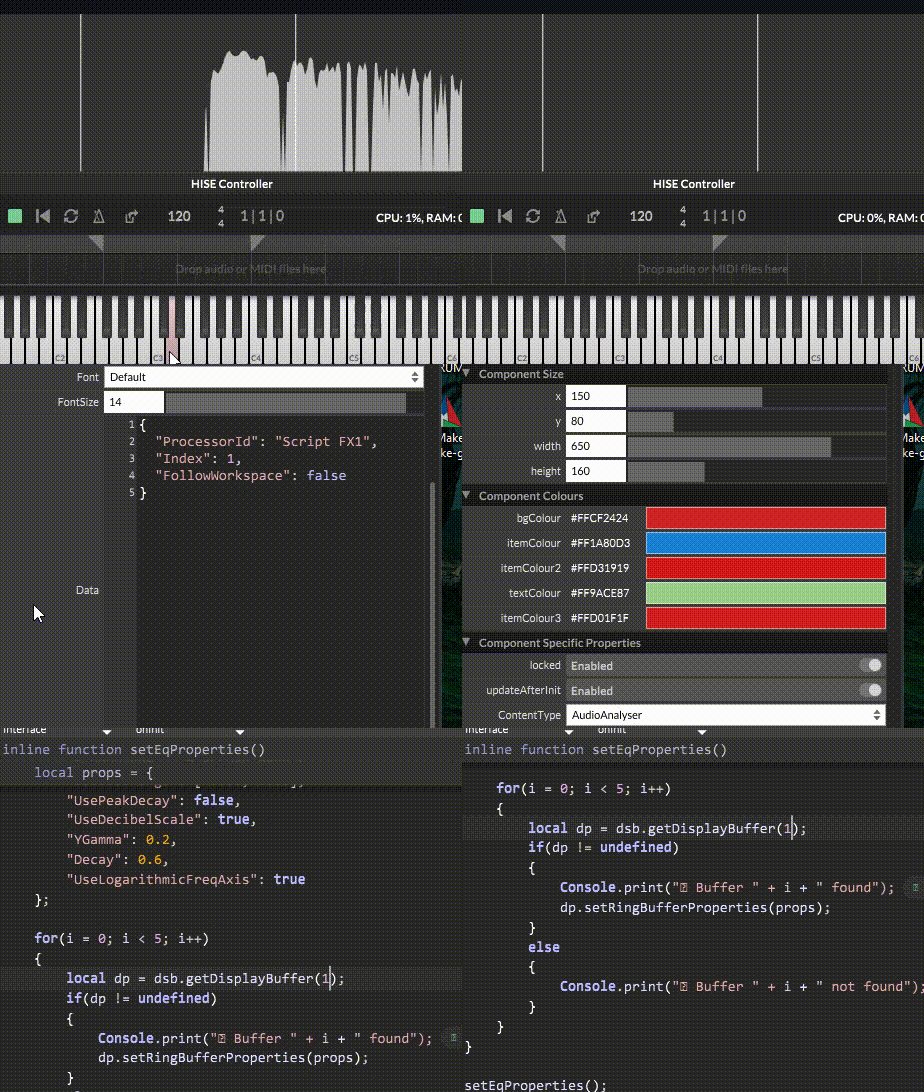
-
@the-red_1 use look and feel
-
@the-red_1Thank you, I used AI to help me with the LookAndFeel code for AudioAnalyser and it worked great — transparent background and custom spectrum colour. But the white grid lines won't disappear no matter what I try.
Do you know the correct LAF function name to hide or customize the grid lines in AudioAnalyser?
And Thank you!Content.makeFrontInterface(918, 581); const var dsb = Synth.getDisplayBufferSource("Script FX1"); Console.print("✅ DSB OK"); inline function setEqProperties() { local props = { "BufferLength": 4096, "WindowType": "Blackman Harris", "DecibelRange": [-90.0, 18.0], "UsePeakDecay": false, "UseDecibelScale": true, "YGamma": 0.2, "Decay": 0.6, "UseLogarithmicFreqAxis": true }; local dp = dsb.getDisplayBuffer(1); dp.setRingBufferProperties(props); } setEqProperties(); // ===== LOOK AND FEEL ===== const var laf = Content.createLocalLookAndFeel(); laf.registerFunction("drawAnalyserBackground", function(g, obj) { g.fillAll(0x00000000); }); laf.registerFunction("drawAnalyserPath", function(g, obj) { g.setColour(0xFF798ca2); g.drawPath(obj.path, obj.area, 1.0); }); const var waves = Content.getComponent("waves"); waves.setLocalLookAndFeel(laf);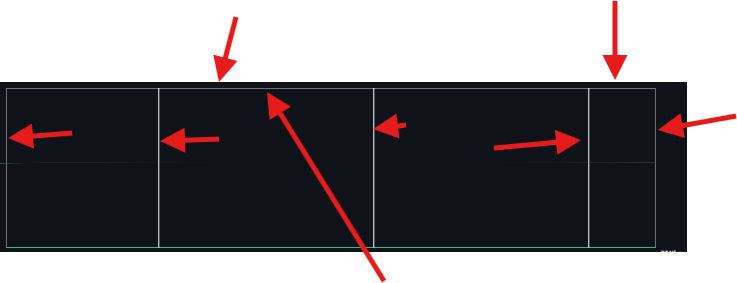
-
@the-red_1
drawAnalyserGridLook and feel function.Free HISE Bootcamp Full Course for beginners.
YouTube Channel - HISE tutorials
My Patreon - More HISE tutorials -
@David-Healey Thank you so much!
 🩸
🩸