Bringing an Existing Catalog Into SoundSync
-
Hey Gang,
One thing I wanted to go through is how you can bring an existing product catalog into SoundSync without entering every product again.
You can start with a public store URL, a product export such as a CSV, or use both together. The importer finds what it can, then gives you a review screen before anything is saved as a draft.
I’m using Moonwave for the examples below, with Conduit, Voidline, and Eidolon in the CSV walkthrough. The delivery ZIPs are small test files for showing the process; they aren’t the actual product installers. Everything shown stays unpublished.
1. Open the importer
Go to Products → Import / Upload. There is a Store URL field and an optional Product export field. You can leave the URL blank and use an export on its own.
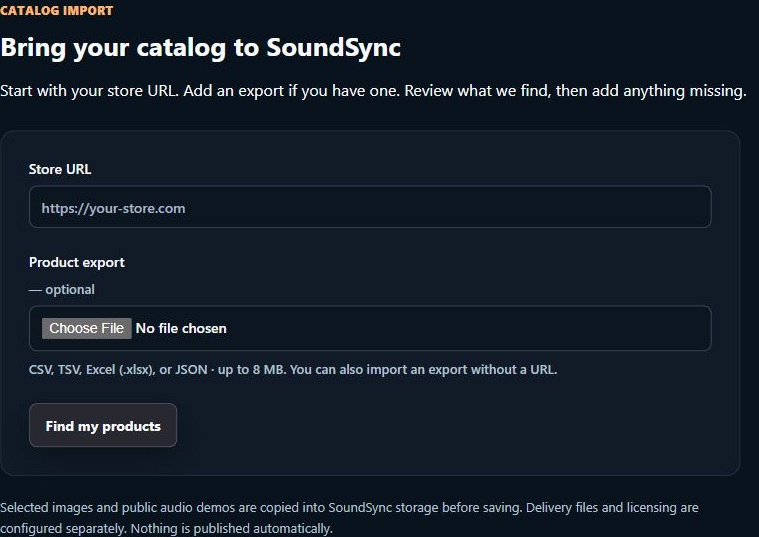
The starting screen supports a URL, an export, or both.
2. Import from a CSV
Choose your CSV and click Find my products. CSV, TSV, Excel (.xlsx), and JSON exports are supported, up to 8 MB.
Open Review export column mapping and check where your columns are going. For example, Product Name should map to the product name, Price to the product price, and any download-link columns to private delivery links. Use product prices here, rather than an order total or sales report.
There is also a Download Demo Import CSVs button with editable examples, including WooCommerce- and Shopify-style exports. Unzip the examples and replace the demo values and URLs with your own.
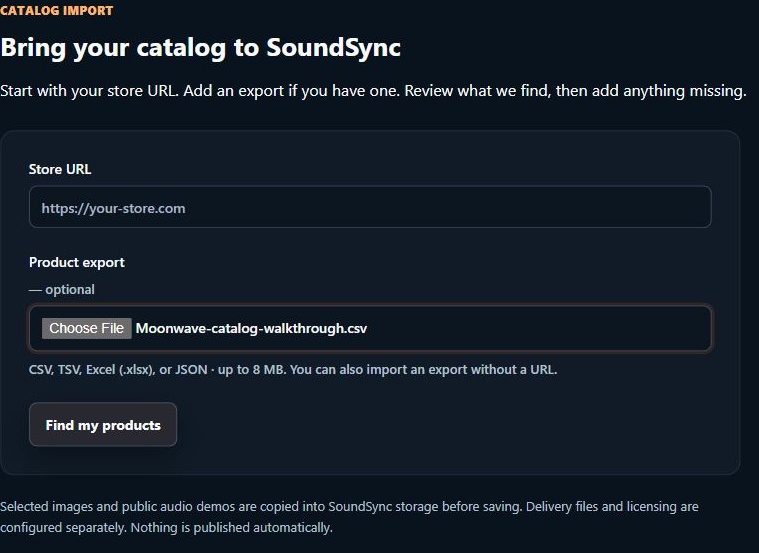
Moonwave CSV selected, with the Store URL left blank.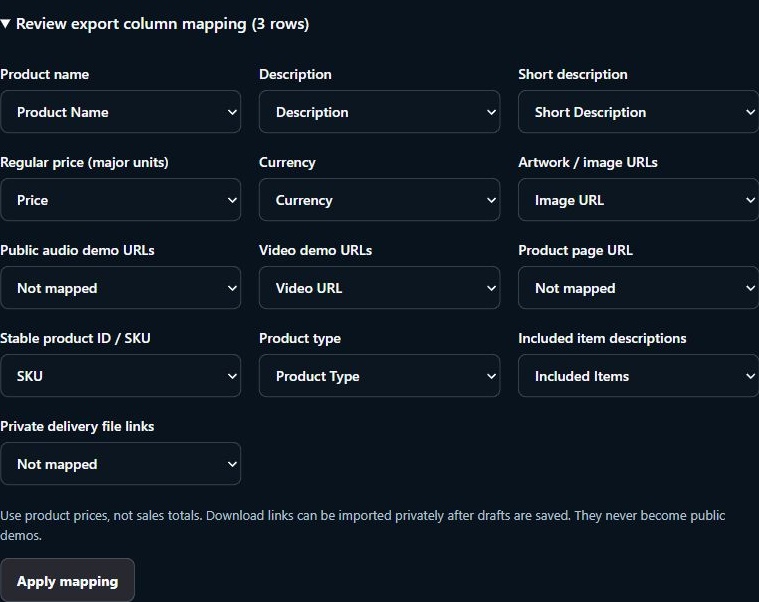
Check the name, price, artwork, and video column mappings.3. Import from a website URL
For the URL route, enter your public store address and click Find my products. The export field can stay empty. An individual public product page can also be used to bring in one product.
SoundSync looks for readable product information and supported artwork, public audio, and video references. Check the final product list against your original catalog; the number found is not a guarantee that every product was discovered.
If the site needs a login, blocks access, or only exposes its product content after JavaScript runs, use an export or fill in the missing information manually. You can also provide a URL and an export together.
For the Moonwave product results in this walkthrough, I used the CSV route. If homepage scan does not recognize the products or you get an empty or incomplete result, add an export and check it against your catalog.
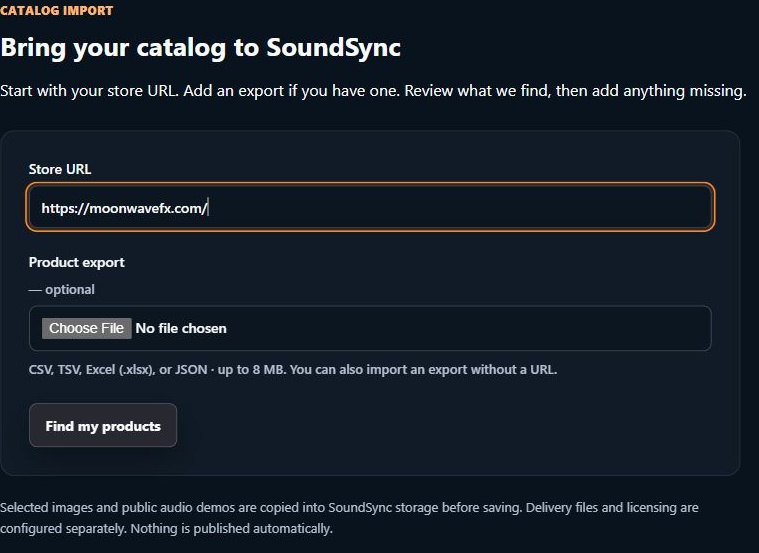
The URL entry step, using Moonwave’s public store address. Product-result screenshots below come from the CSV import.4. Check the product details
For either route, expand the products and check the actual information. In particular:
- Are all the expected products present, and are any duplicates or variants being mistaken for separate products?
- Are the names, descriptions, product types, and listed contents correct?
- Are the prices correct in USD? No currency conversion is performed. Review any missing-price or minimum-price warnings.
- Are the selected images the right artwork? Are audio files public demos rather than the files customers are meant to receive?
- Are video links correct, and is anything important missing?
- For repeat imports, is an item a new product, a matched draft, or a published product that will be skipped?
Selected artwork and public audio are copied into SoundSync storage before the drafts save. If a copy fails, retry it or deselect that file and upload a replacement later. Supported video embeds stay with their video provider.
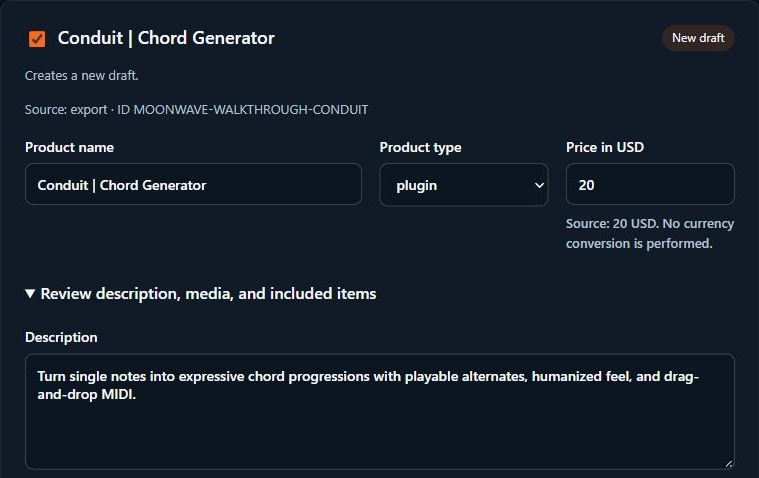
Review Conduit’s name, type, price, and description.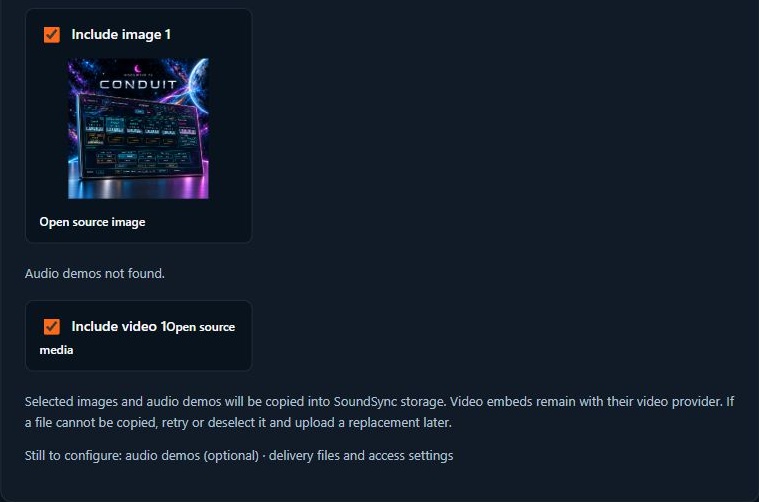
Review the Moonwave artwork and video included from the CSV. Public media is separate from private delivery files.5. Save the selected products as drafts
Select the products you want, confirm the review checkbox, and click Save selected as drafts. Nothing is published automatically.
Matched drafts are unselected by default. If you opt into filling their empty fields, existing saved content and prices are preserved. Published products are skipped by this importer.
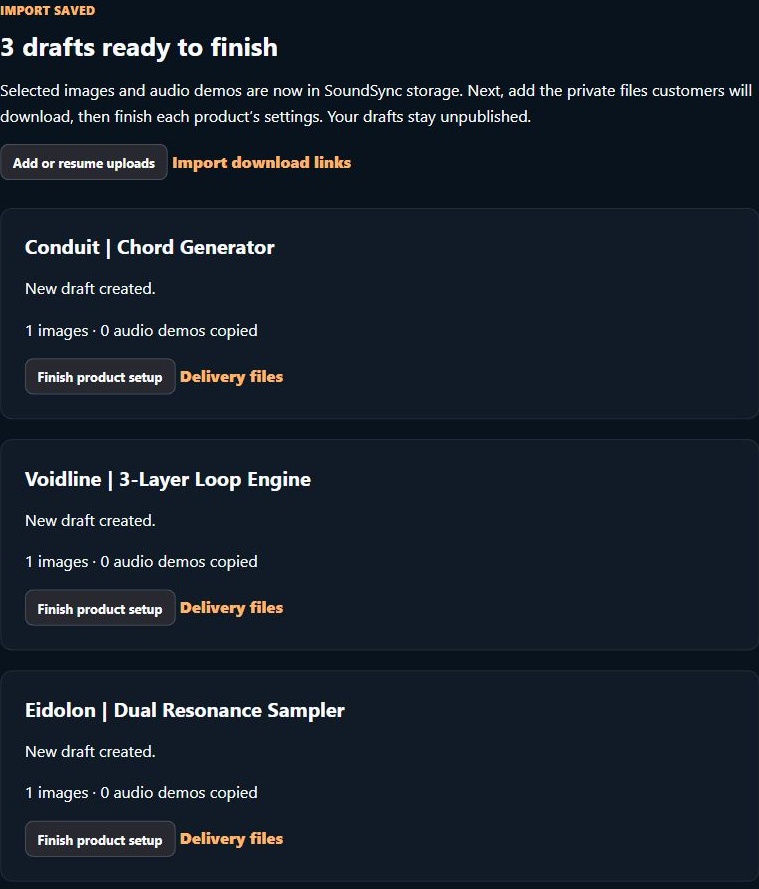
The three Moonwave walkthrough drafts are ready for delivery files and final setup.6. Add files from your computer
Under Add delivery files together, select your installers or product archives and check the product assigned to every file. Filename matches are suggestions, so correct them before clicking Upload matched files.
You can attach several files to one product. Here the Windows and macOS test ZIPs both go to Conduit, while the third test ZIP goes to Voidline.
These are private customer downloads, separate from the public artwork and audio demos. Package installers as ZIPs; supported manuals, audio, text, and MIDI files can also be attached.
The interface supports up to 10 GB per file. Keep the tab open for local transfers. Upload progress is retained for 24 hours from the start; after a reload, choose the same original files to resume saved chunks.
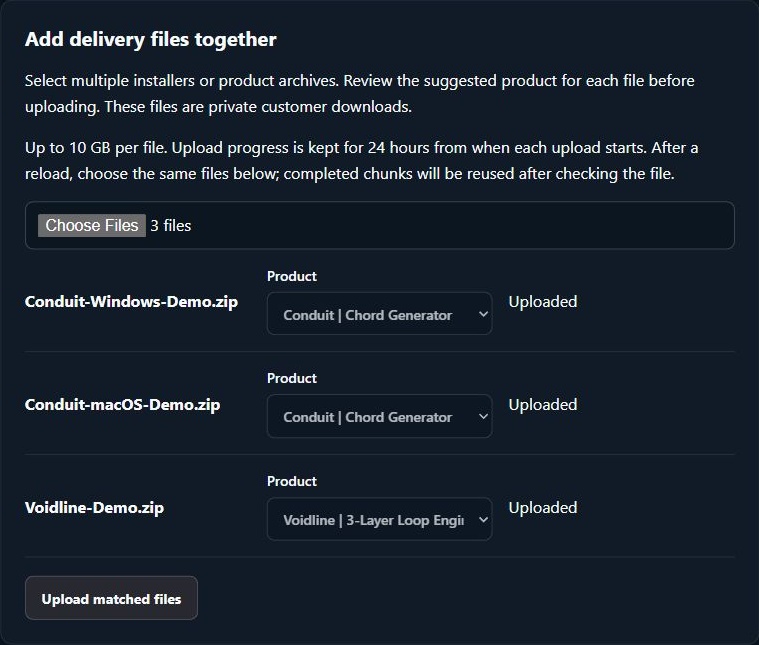
Two test files matched to Conduit, with a separate file matched to Voidline.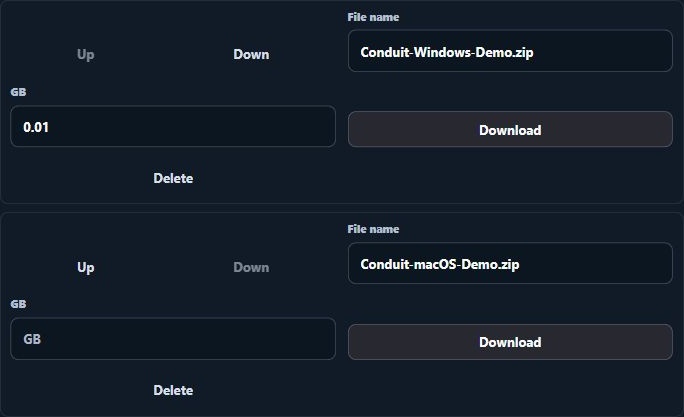
The Conduit draft retains both operating-system test archives when reopened.7. Add files from download links
If your files already have direct download URLs, use Import delivery files from links. Upload a CSV with a product-name column and one or more download-link columns, then click Review download links.
Confirm the name and link columns, check each product match, select the files you want, and confirm the private-delivery checkbox before starting the import. Unmatched or duplicate names need a manual product selection.
These need to be direct file links, including valid signed links where appropriate. A checkout page, sign-in page, or ordinary share page is not a direct download. Expired links need replacing.
SoundSync copies the files into private delivery storage and attaches them to the selected product. Link imports continue on the server if you leave the page. Check for an attached result and review or retry failures.
For the Eidolon example here, I used SoundSync’s public demo-CSV ZIP as a harmless test transfer. It isn’t an Eidolon installer. For an actual product, use your own delivery URLs.
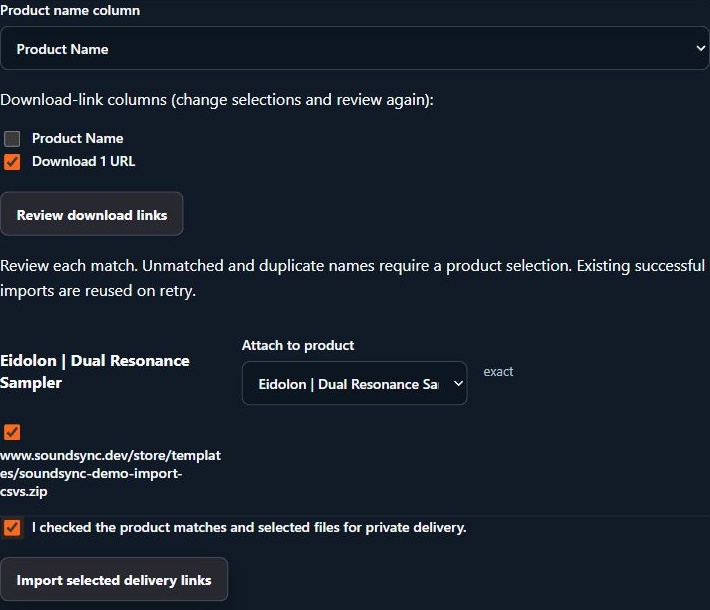
Review the Eidolon draft, selected test download, and confirmation before importing. The test download is attached privately to the Eidolon walkthrough draft.8. Finish the product setup before publishing
Open each draft and check the remaining setup:
- Product copy, artwork, public demos, version, product type, and price.
- Actual downloadable files: filenames, Windows/macOS versions, manuals, and archive contents. Test the downloads.
- Compatibility/specifications, installation instructions, license documents, and support information.
- Access and licensing settings. For a plugin, generate the appropriate integration package and test activation and validation in your exported build.
- Any bundle membership or subscription configuration, which needs its own setup.
- The product-page preview, storefront placement, and intended publication settings.
The catalog import handles product information and supported files. Existing customer accounts, past orders, recurring billing, and marketing permissions need their separate migration workflows.
I wanted to show the whole process because finding the products is only part of moving a catalog. The review and delivery steps are where you make sure customers receive the right thing.
If you have an export from another platform, I’d be interested to hear which fields or file formats have been the most awkward to move.
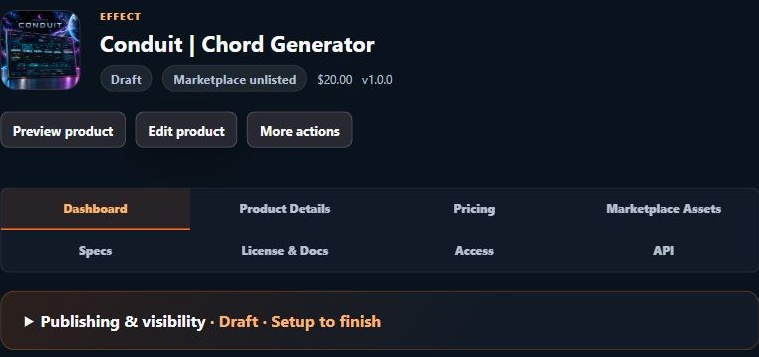
The imported product remains a draft while the remaining product sections are reviewed.Import overview: https://www.soundsync.dev/features/product-import