xcpretty Not Detected After Install on macOS Tahoe M1: Compiling Fails in HISE Export
-
@David-Healey Reloading Hise fixes the issue
-
@David-Healey How do I change the size of the grid in the interface view? asked this in a differant thread but the person there hasn't answered in two days.
-
@DJJD12345 said in xcpretty Not Detected After Install on macOS Tahoe M1: Compiling Fails in HISE Export:
How do I change the size of the grid
Which grid?
Free HISE Bootcamp Full Course for beginners.
YouTube Channel - HISE tutorials
My Patreon - More HISE tutorials -
@David-Healey the grid in interface view
-
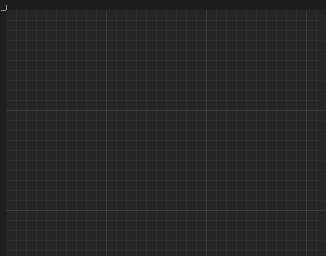
@DJJD12345 Are you talking about this?
Free HISE Bootcamp Full Course for beginners.
YouTube Channel - HISE tutorials
My Patreon - More HISE tutorials -
@David-Healey yes, how do I change its size I want the background image of my plugin to be what I want, not 600x600
-
@DJJD12345 You can't change the grid size. You can change the interface size.
In the Interface script, change these values, then click compile.
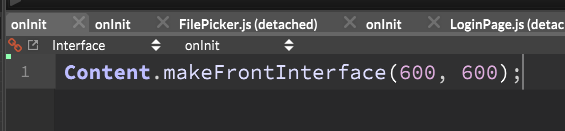
I demonstrated this in the bootcamp too.
Free HISE Bootcamp Full Course for beginners.
YouTube Channel - HISE tutorials
My Patreon - More HISE tutorials -
@David-Healey sorry I only watched what I wanted (what was necessary). but thanks
-
 D David Healey referenced this topic on
-
@David-Healey how do I save an interface look as a preset to then open up on a different project
-
@DJJD12345 There isn't a way to do this directly. If you want to build a new project that has the same basic look another project, then the simplest method is to duplicate the first project folder and use that as the basis for the second project.
If you just want to copy interface elements you can open the JSON view in the first project (select a component in the component list and press
J), select the text, copy it, and paste it into the new project.Or you can copy/paste it in the project xml files.
Free HISE Bootcamp Full Course for beginners.
YouTube Channel - HISE tutorials
My Patreon - More HISE tutorials -
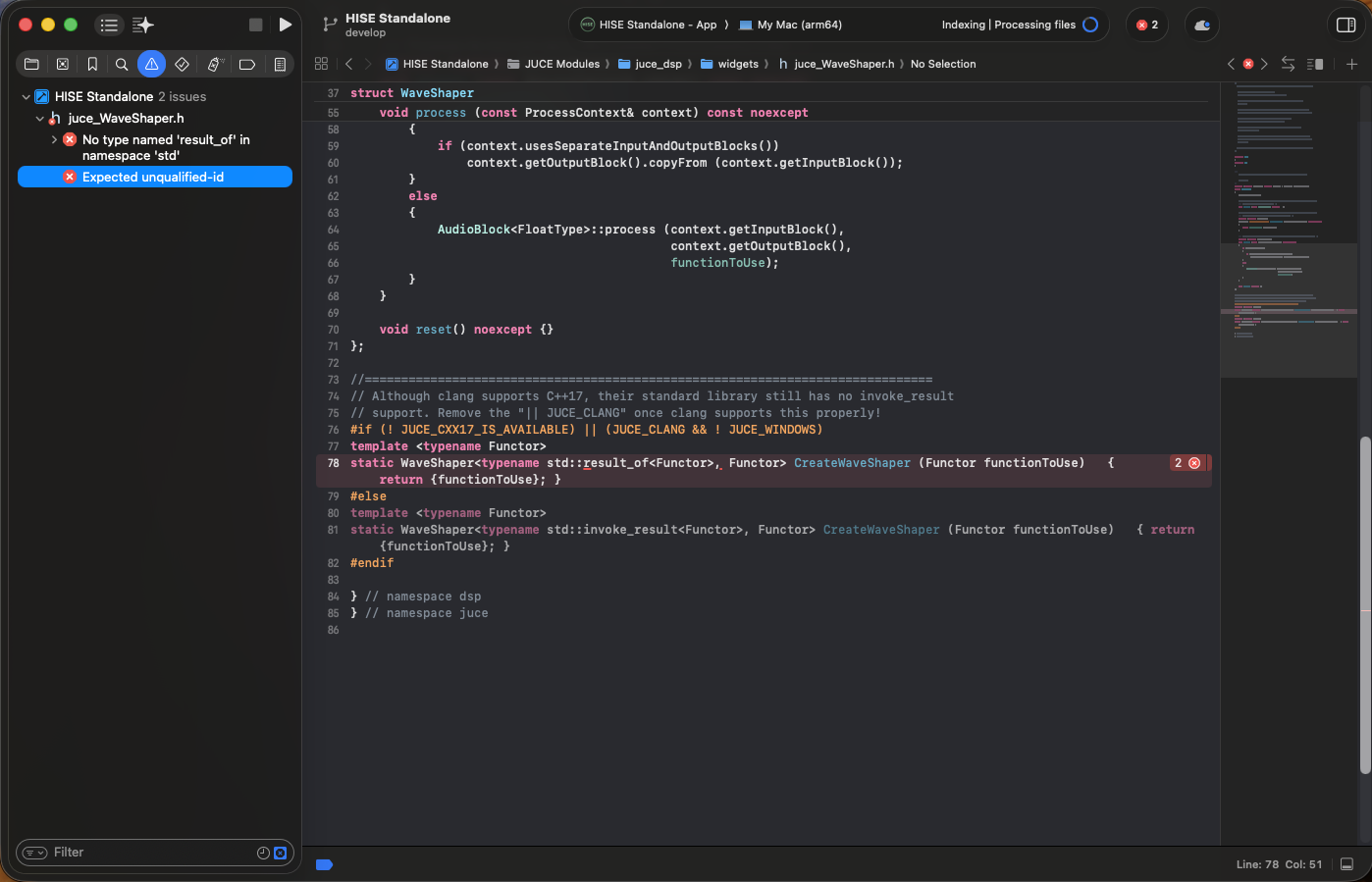
@David-Healey getting this error when compiling with the latest githash using faust 2.83.1
-
@DJJD12345 Maybe there's a bug in the commit. Did you clean the build before starting?
Free HISE Bootcamp Full Course for beginners.
YouTube Channel - HISE tutorials
My Patreon - More HISE tutorials -
@David-Healey Yes, but because of the error, I have to press clean build twice
-
@David-Healey I'm using githash 6ba56cc
-
@DJJD12345 Try an earlier commit, there is nothing in the latest commit that will be critical to your project
Free HISE Bootcamp Full Course for beginners.
YouTube Channel - HISE tutorials
My Patreon - More HISE tutorials -
@David-Healey the last one I was using came out a month ago and it worked but I need to use the latest
-
@DJJD12345 I spoke to someone else earlier today who is using the latest commit, I think they're on Windows though. But if it's working after cleaning the build twice then you can proceed, no?
Free HISE Bootcamp Full Course for beginners.
YouTube Channel - HISE tutorials
My Patreon - More HISE tutorials -
@David-Healey can't error still appears.
-
@DJJD12345 What feature do you need that isn't in the earlier commit that worked?
Free HISE Bootcamp Full Course for beginners.
YouTube Channel - HISE tutorials
My Patreon - More HISE tutorials -
@David-Healey need the compilation fix as I have the new version of faust 2.83.1